How to Zoom locally on Appointments App
IMPORTANT! DO not click SUBMIT button on zoom, it will deactivate our zoom app and we will have to go through the review process again
https://docs.google.com/document/d/1B7VeV_O_tkGmNcPeDCFv6cdV4Bsa5v_Vcz2f8KtGpk0/edit?usp=sharing
1 video: connect zoom to localhost: https://www.loom.com/share/2941df6aac9d462bbbbbc73338d0f769
2 video: submit app to zoom: https://www.loom.com/share/39232f3a52754afba1d9263a19ec1ad9
1 Login to zoom with [email protected] account https://zoom.us/signin#/login
2 Go to https://marketplace.zoom.us/user/build
3 Choose https://marketplace.zoom.us/user/build
4 Go to App Credentials at https://marketplace.zoom.us/develop/apps/cBK1v1_wTWOGDLK_fbeWyg/credentials
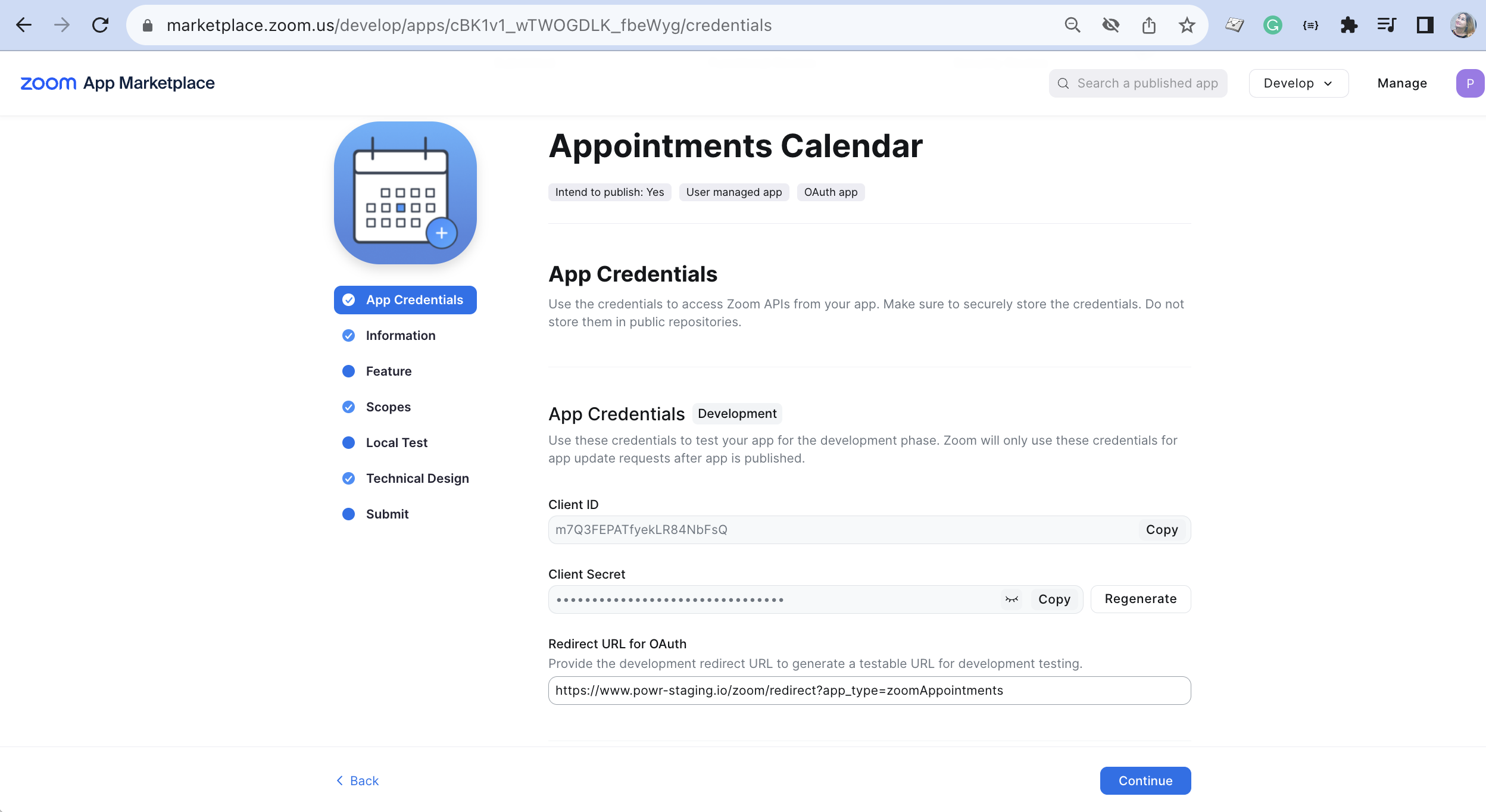
5 Ad client ID and secret to your /Users/ranger/dev/powr/config/credentials/development.yml.enc from App Credentials (basically Staging and localhost shares the same credentials):
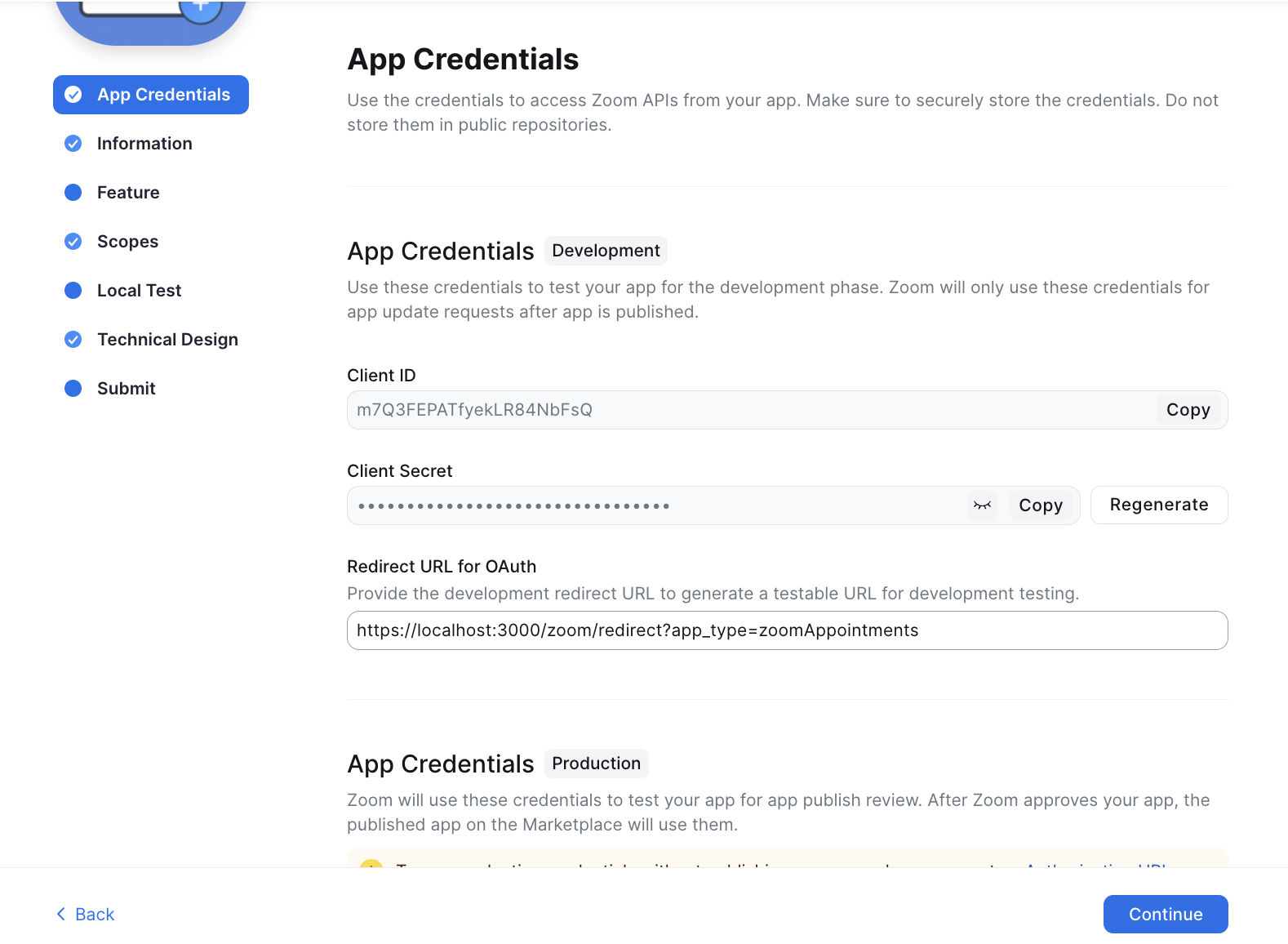

6 Change Redirect URL for OAuth from https://www.powr-staging.io/zoom/redirect?app_type=zoomAppointments to https://localhost:3000/zoom/redirect?app_type=zoomAppointments
7 Scroll down to Add Allow List add https://localhost:3000
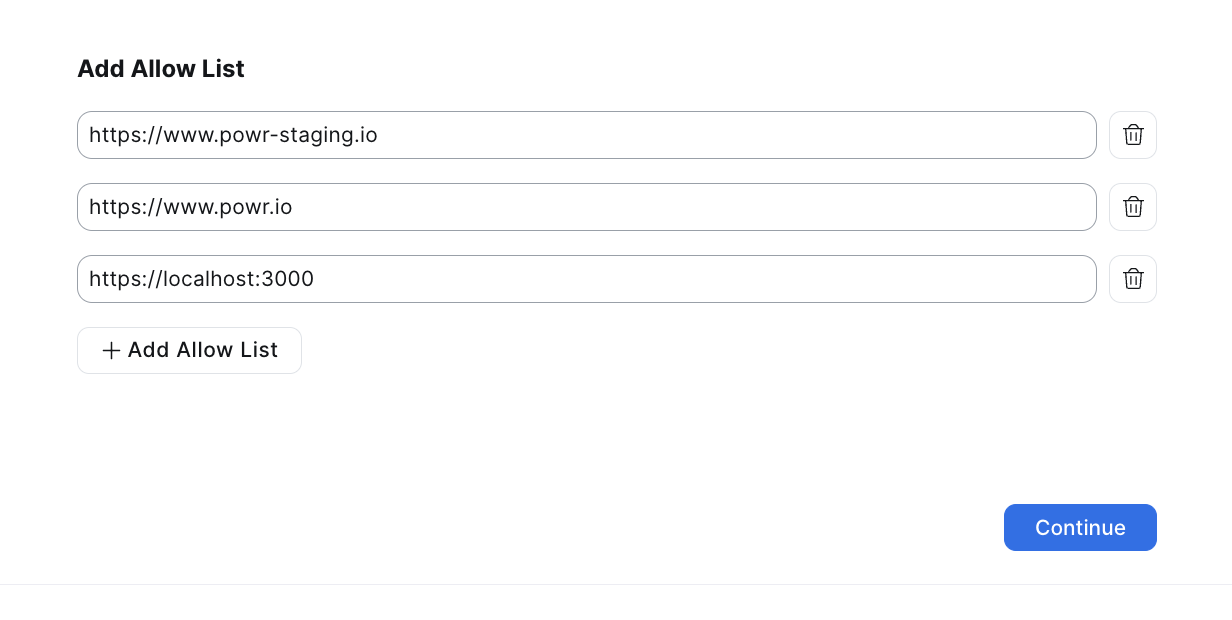
8 Click to CONTINUE button
9 Now go to your appointments standalone and add zoom:
You will be redirected to zoom allow page, and receive email to verify zoom.
After that you may book the appointments and you will receive zoom link for the meeting via email, admins can review zoom links at responses https://localhost:3000/appointment-responses/app_id
10 you can see at zoom your installed app:
https://marketplace.zoom.us/user/installed
In db you may find the record at ZoomInstall by user_id