Using HTTPS Trusted Certificate on localhost (Docker)
Author: Alikhan Askarov. Please ask him a question if you have any.
This guide will help you get rid of RED UNTRUSTED HTTPS certificate warning.
We are using docker compose, where we do write a configuration for our local services (web, webpacker, pgdb, redis).
Stop all containers if they are running.
Open a Docker Desktop Dashboard.
Delete
webandwebpackercontainers.Proceed to Volumes section in Docker and remove these volumes:
powr_node_modules
powr_web_node_modules
Open Keychain Access application on your Mac
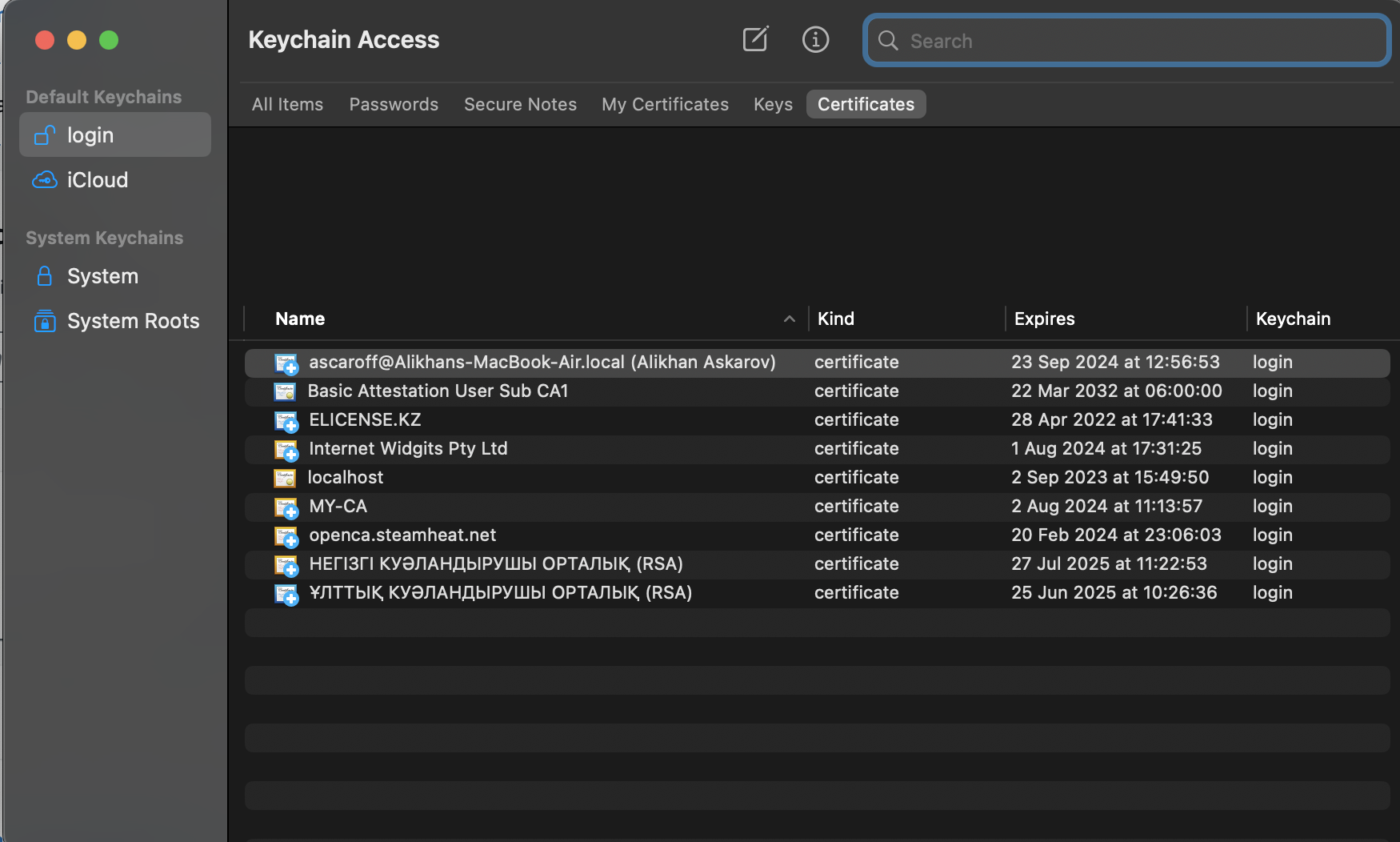
Open Finder and proceed to your
powrproject. Here we need to openlocal_certificatesdirectory and dragca.pemandlocalhost.crtto Keychain Access' Certificates -> login section. Then by double-clicking on each newly added certificates(on picture above they are calledlocalhostandMY-CA), in the trust dropdown menu, please at the very first select menu choose always trust. After the OS confirmation it should be shown to you with blue plus sign meaning these certificates are now trusted.Now you can up your containers and you should see that certificate on
https://localhost:3000andhttps://localhost:3002are trusted and correct.
Here's a documentation on how to create a self-signed certificate in case this one will become stale How to Create Trusted SSL Certificates for Your Local Development
A DOC BELOW IS OBSOLETE
Using HTTPS on localhost
Author: Yerassyl
For questions ping him.
How to use an ssl certificate on localhost for development?
- Go to this tutorial and follow the instructions to set up self-signed certificates.
- Put your certificates under powr-ssl-cert directory and make sure it is located near the main powr code directory (So that they are siblings)

Your powr-ssl-cert should look like this:

NOTE: make sure you have server.key and server.crt files. If you will have different names, you will need to edit locations in configs, I suggest you to have same names as shown above.
Open your .bashrc or .zshrc file and add the following at the bottom of the file:
export USE_CUSTOM_CERT="true"
NOTE: It depends on what type of terminal you are using bash or zsh, **.zshrc** is usually under ~/.zshrc (.bashrc should be too). I suggest you to use zshrc [Install zsh from here](https://ohmyz.sh/)
In your terminal do: source ~/.zshrc (to apply changes)
In your Procfile.local (or whatever you use to start application), make sure you start web process using this command:
web: thin start -p 3000 --ssl --ssl-key-file ../powr-ssl-cert/server.key --ssl-cert-file ../powr-ssl-cert/server.crt
The rest should be already configured.
Go to https://localhost:3000, you should see “lock” in url bar telling that site is secure
