pgdb_gcloud
Creating dump.sql file
pg_dump \
    --verbose \
    --no-acl \
    --no-owner \
    --dbname=<dbname> \
    --file=./dump.sql \
    --username=<dbusername> \
    --host=<dbhost> \
    --port=5432
Removing REFRESH MATERIALIZED VIEW
for some reason it causes error during import
grep -v "REFRESH MATERIALIZED VIEW" dump.sql > tmpfile && mv tmpfile dump.sql
Compressing
Optional step and may not be required if internet speed is fast
gzip -9 dump.sql
Uploading to GCP Cloud Storage
gsutil cp dump.sql.gz gs://dumps-powr/dump.sql.gz
or if dump.sql was not compressed
gsutil cp dump.sql gs://dumps-powr/dump.sql
Optional: Using GCP VM Instance
previous steps could be accelerated if run on GCP VM instance instead of local machine
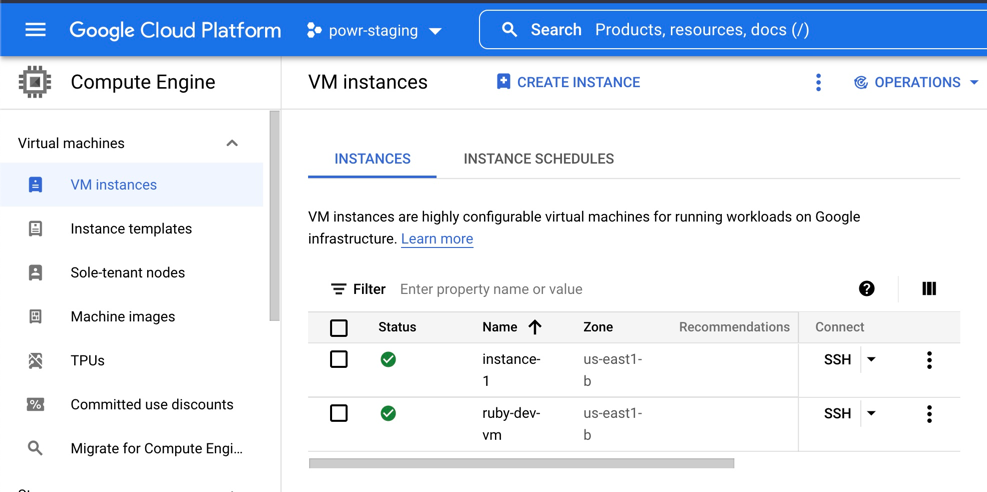
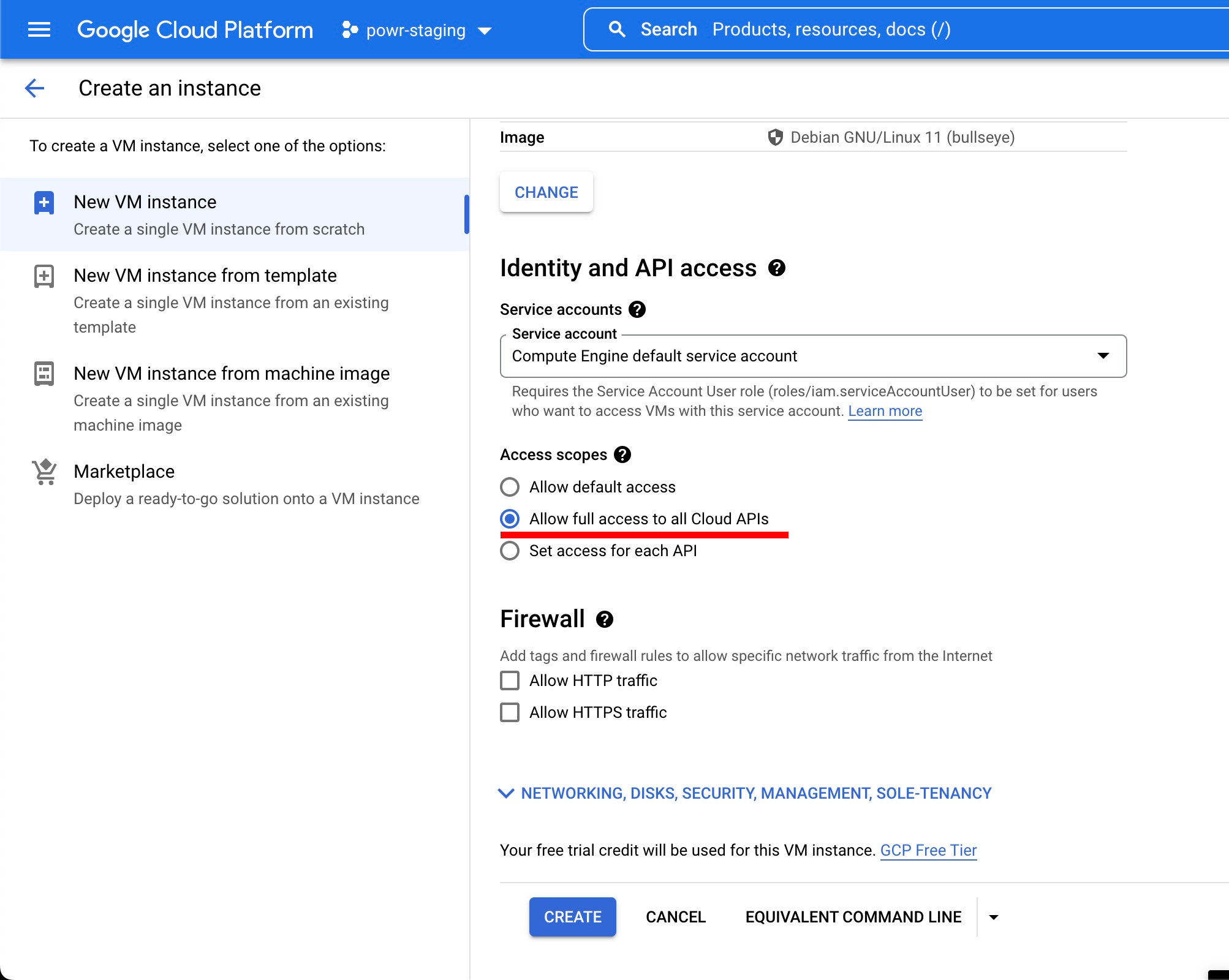
Creating VM instance
with at least 20 GB disk space and Allow full access to all Cloud APIs selected
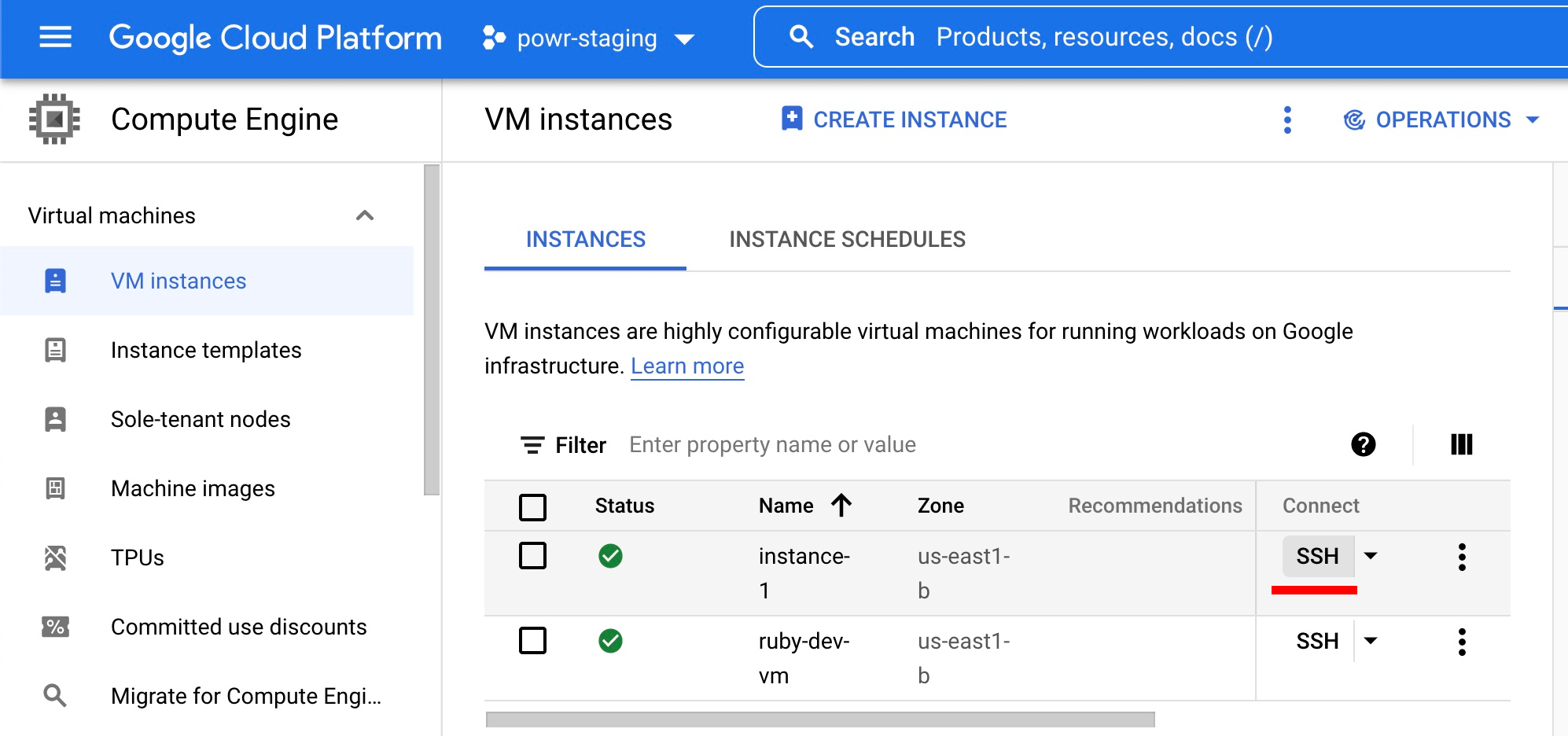
SSH into VM
Installing pg_dump on VM
sudo apt update
sudo apt -y upgrade
sudo reboot
sudo apt update
sudo apt -y install gnupg2
sudo apt install wget
wget --quiet -O - https://www.postgresql.org/media/keys/ACCC4CF8.asc | sudo apt-key add -
echo "deb http://apt.postgresql.org/pub/repos/apt/ `lsb_release -cs`-pgdg main" |sudo tee  /etc/apt/sources.list.d/pgdg.list
sudo apt update
sudo apt -y install postgresql-13 postgresql-client-13
then above steps should be performed
Creating database and import
(if not already exists)
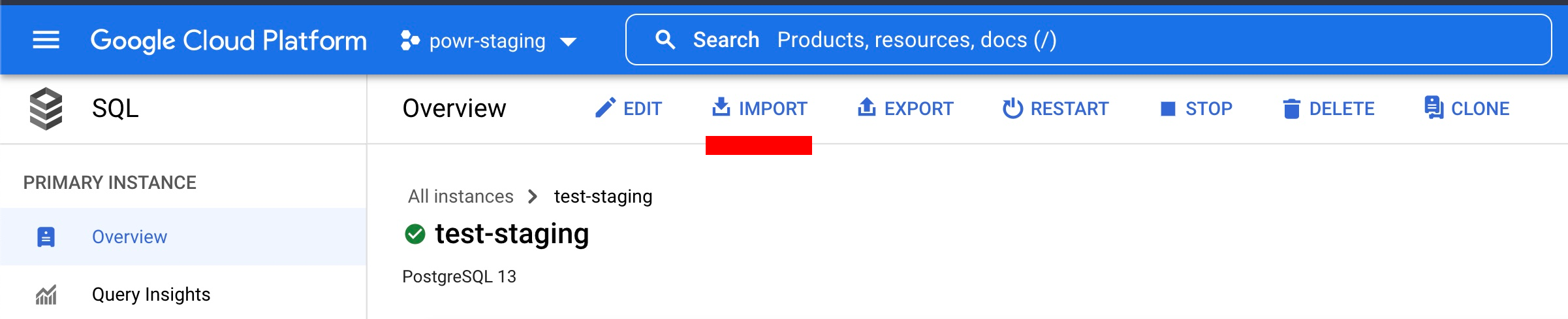
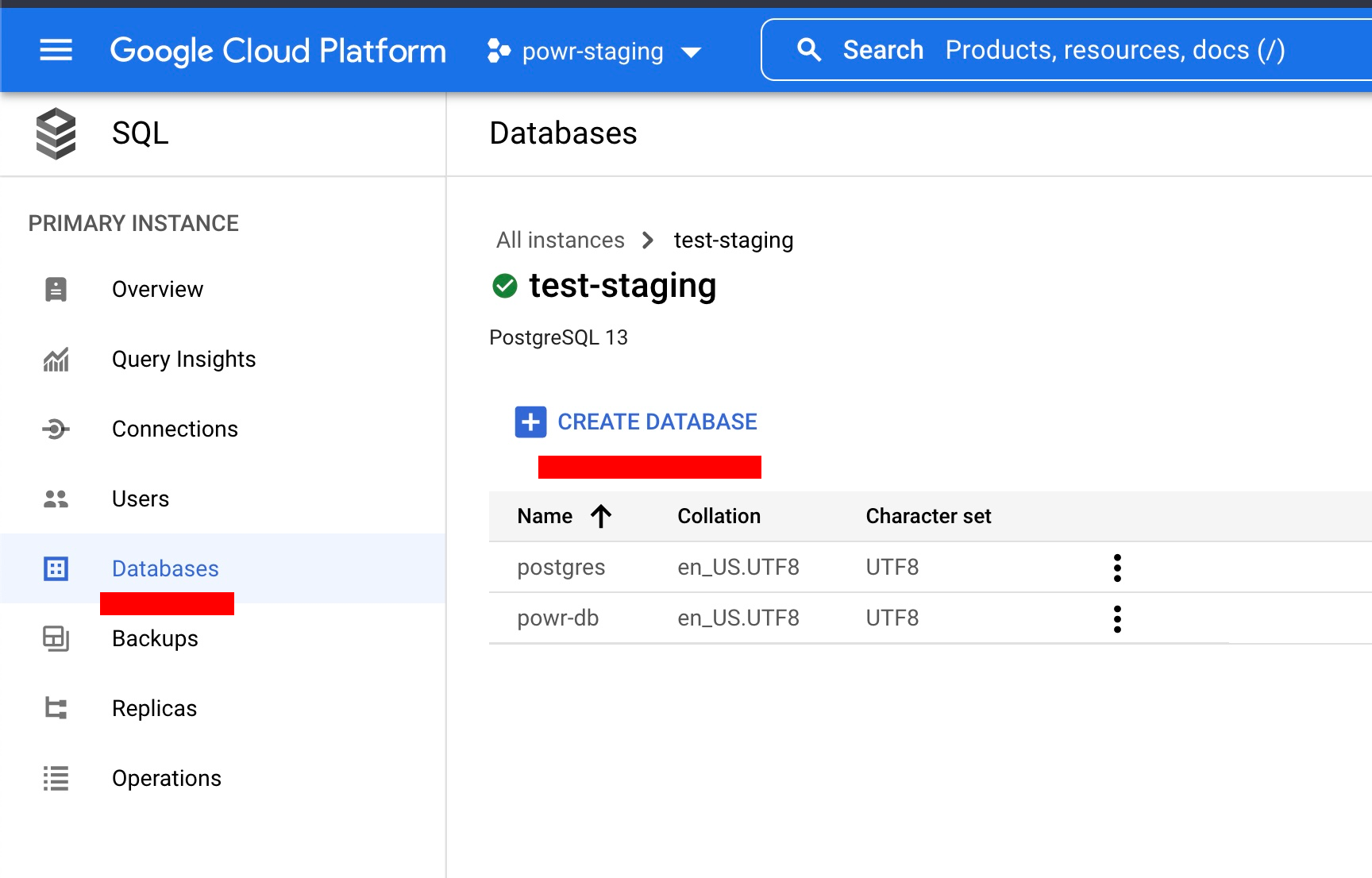 Please navigate to "Import" page of GCP SQL instance
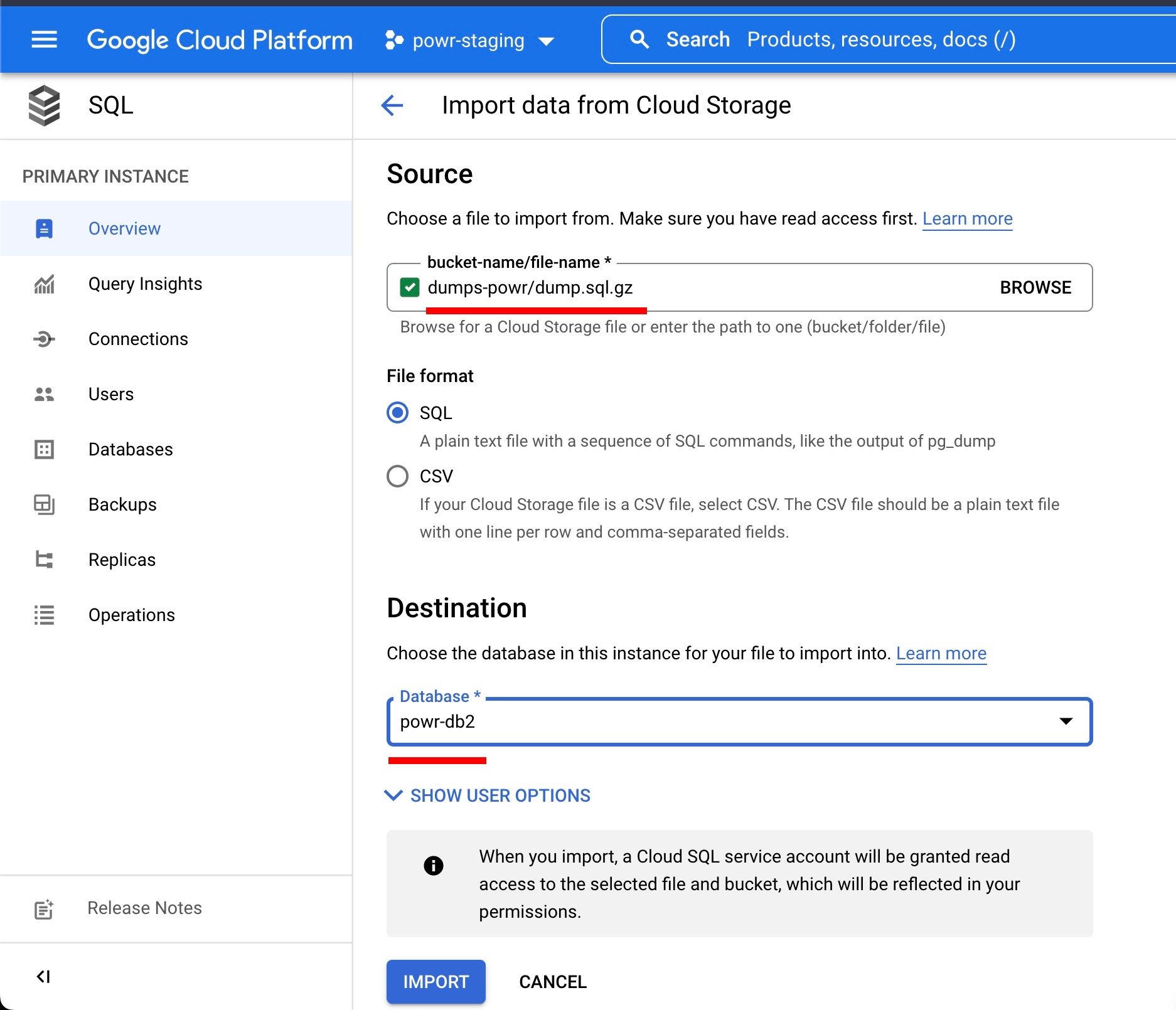
 Select the dump file, database and click import
Google cloud needs db dumps in a special format to create a dump do this:
mkdir -p ~/tools/gcl_pgdb_stage; cd ~/tools/gcl_pgdb_stage/; pg_dump \
  --verbose \
  --username=u303eqtiasd3tn \
  --format=custom \
  --no-acl \
  --no-owner \
  --dbname=d4cv61eflpjqf6 \
  --host=ec2-3-224-192-186.compute-1.amazonaws.com \
  --port=5432 > powr-staging.dmp
and then clean this dump with
grep -v "REFRESH MATERIALIZED VIEW" dump.sql > tmpfile && mv tmpfile dump.sql